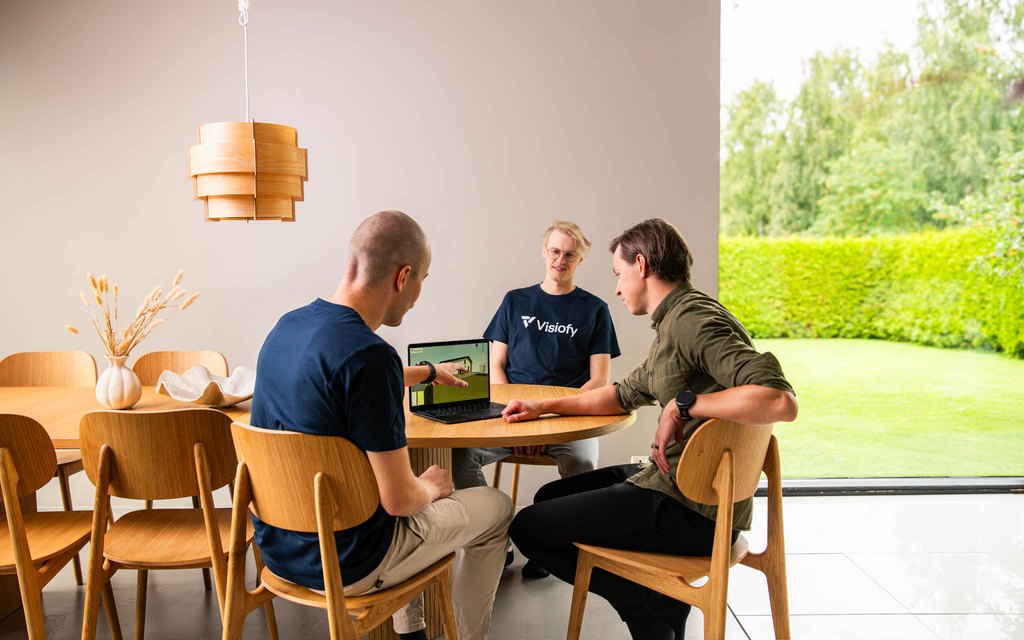


sketchup vr walkthrough
can sketchup be used for virtual reality?
sketchup vr tutorial


If you’re using Visiofy and want to preview a building inside your Meta Quest 2 or 3, you don’t need to install any apps — you can use the built-in Meta Browser.

In this guide, we’ll show you exactly how to:
Open the browser on your headset
Navigate to your Visiofy tour
Interact with it in VR mode
This is a quick and easy way to experience your designs fully immersed, without needing any developer tools or sideloaded apps.
Press the Oculus button on your right controller to bring up the universal menu.
Look for the Browser icon (it looks like a globe).
Tip: If you don’t see the browser right away, select the apps grid ("Apps" icon), then choose “Browser” from your app list.
In the browser, select the address bar at the top.
If you're a house buyer aka viewer: Paste the URL link to your Visiofy VR tour using hmd.link (here's a quick tutorial)
Press Enter on the virtual keyboard.
Your Visiofy scene should load in a few seconds.
All Visiofy tours are hosted in the cloud — so no downloads or installs required.
.jpg?width=1024&height=683&name=Visionfy350k-44%20(1).jpg)
Once the tour has loaded:
Look for a “Enter VR” button or headset icon on the screen — this may appear as a prompt.
Use your controller to click it.
The browser will switch into immersive view inside your headset.
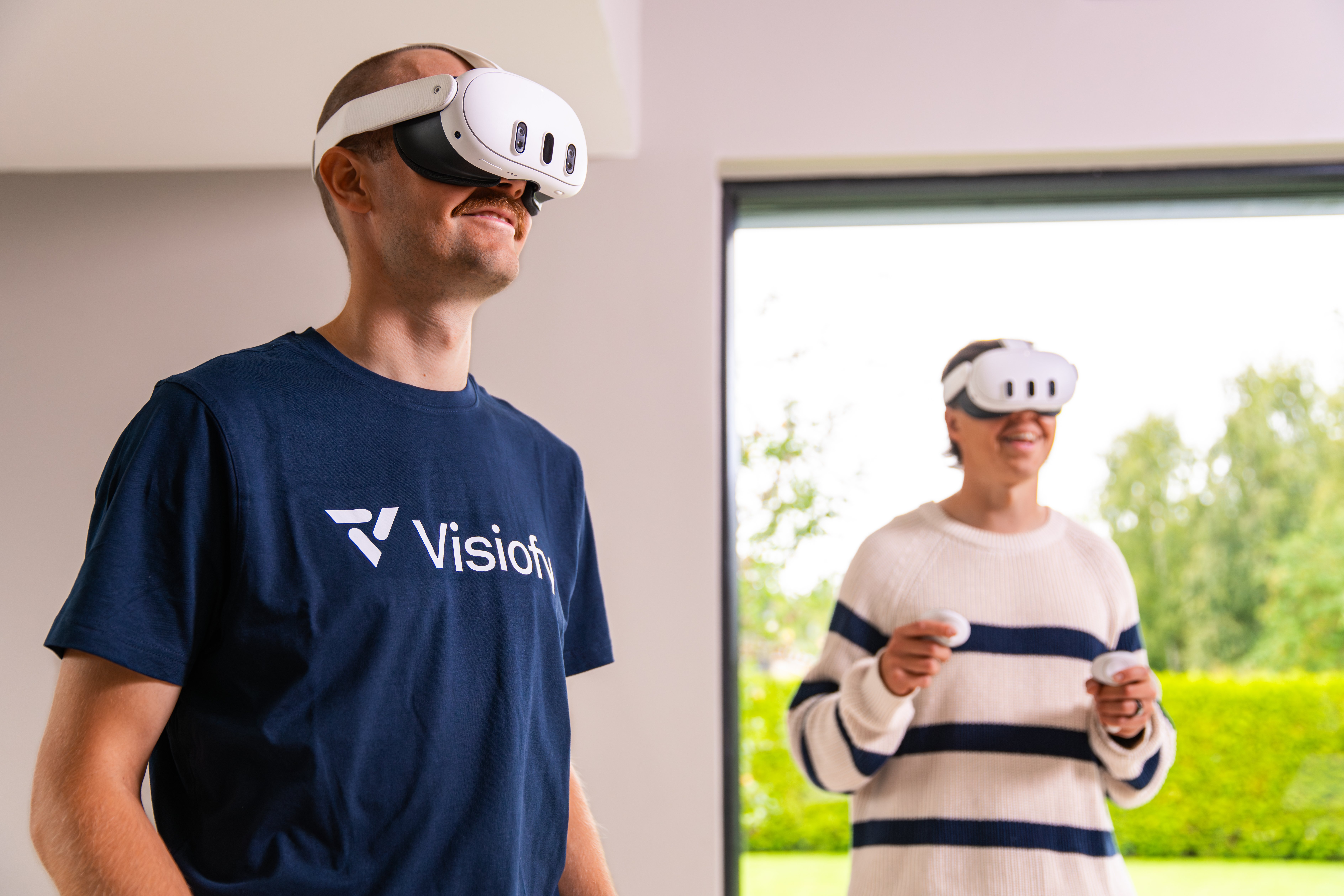
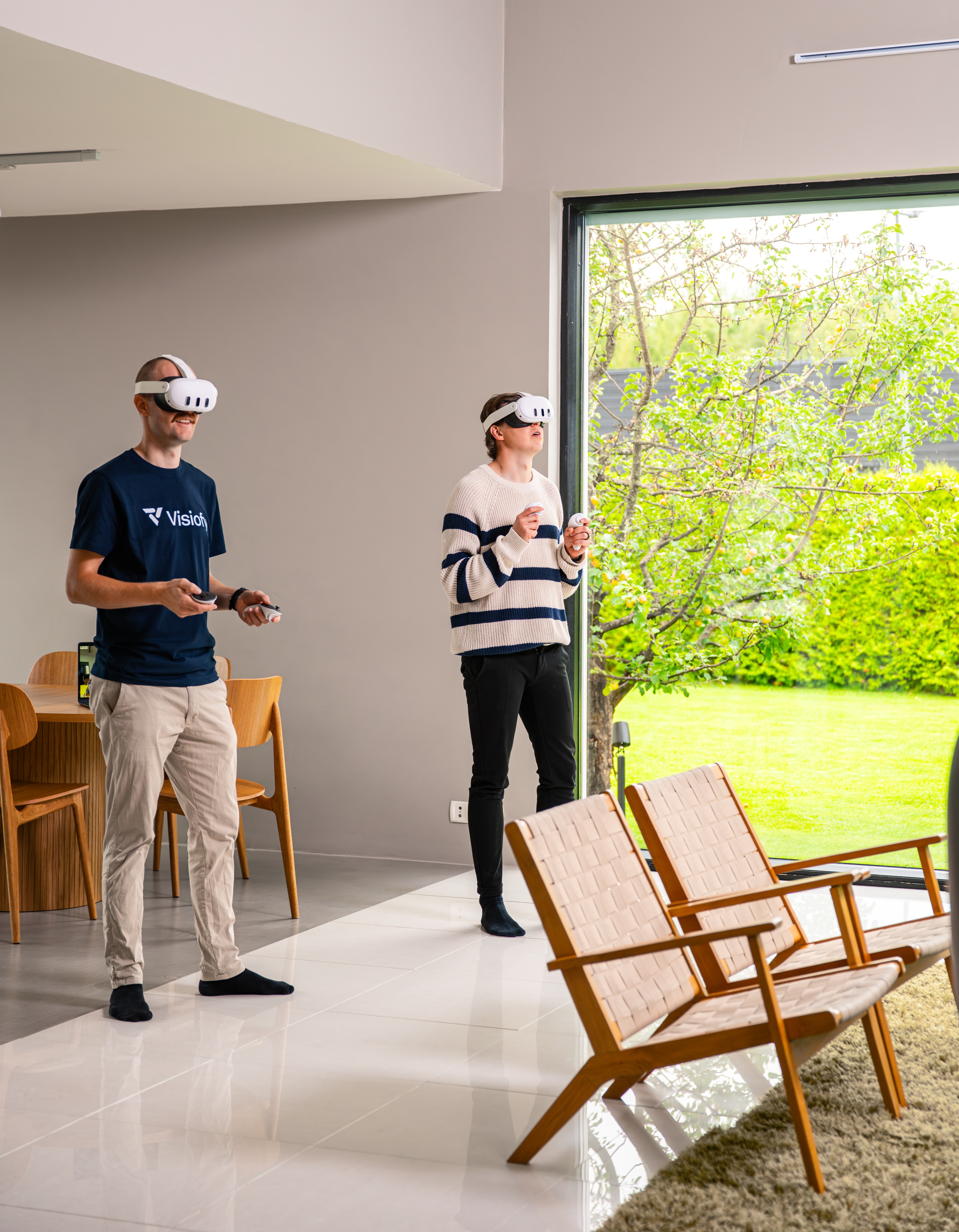
Now you can explore the model freely in full virtual reality.

Use your head movement to look around.
Use the controller joystick or teleport function (if enabled in the tour).
If your tour has buttons or hotspots, you can point and click using the controller.
If your tour isn’t loading properly, try the following:
Refresh the page.
Hold the Oculus button to recenter the view.
Go to Browser Settings (gear icon) and clear browsing data.
Final Tips for a Smooth Experience
Make sure your headset is connected to a stable Wi-Fi network.
The browser updates automatically — just make sure your headset software is current.
Bookmark your Visiofy tour link in the headset browser for easier access next time.

Need Help?
If your tour isn’t loading correctly or you’re unsure how to copy your Visiofy link, contact us or visit the Resource Library for step-by-step guidance.