
Skip to content
Meta Quest Link sharing on Meta Quest Easy send links to Meta Quest from PC or Mobile

How to Open a Shared Visiofy link with a VR Headset using hmd.link

Visiofy
Visiofy

Have you ever received a Visiofy link via WhatsApp, SMS, or email and thought:
“How do I open this in my Meta Quest headset without typing out a tediously long URL?”

Article Overview

With hmd.link, you can open any Visiofy link in your VR headset in seconds—as long as both your phone (or laptop) and the VR headset are on the same Wi-Fi network.

  1. Copy  the Visiofy link on your phone or computer—this is the one someone shared with you.

  2. Visit hmd.link on the same device. Click on "Add link" and paste your Visiofy link.

You're not alone. When someone shares a Visiofy link—say, a stunning 3D visualization of a home project—it’s often opened on a phone. But getting that same link into your VR headset can feel like a chore.

Initial headache:  Link on the wrong device

Visiofy links are typically shared vie email, text or Whatsapp. But to view a project in VR, you need the link inside your Meta Quest headset. Copying the URL manually character by character or trying to log in to email or WhatsApp inside the headset is clunky at best.

Luckily, there’s a faster, smoother way.

Quick fix: Use hmd.link

With hmd.link, you can open any Visiofy link in your Meta Quest headset in seconds—as long as both your phone (or laptop) and the VR headset are on the same Wi-Fi network.

Here’s how it works:

  1. Copy  the Visiofy link on your phone or computer—this is the one someone shared with you.

  2. Visit hmd.link on the same device. Click on "Add link" and paste your Visiofy link.

    NB: Make sure you're connected to the same wifi network you will use on your headset.
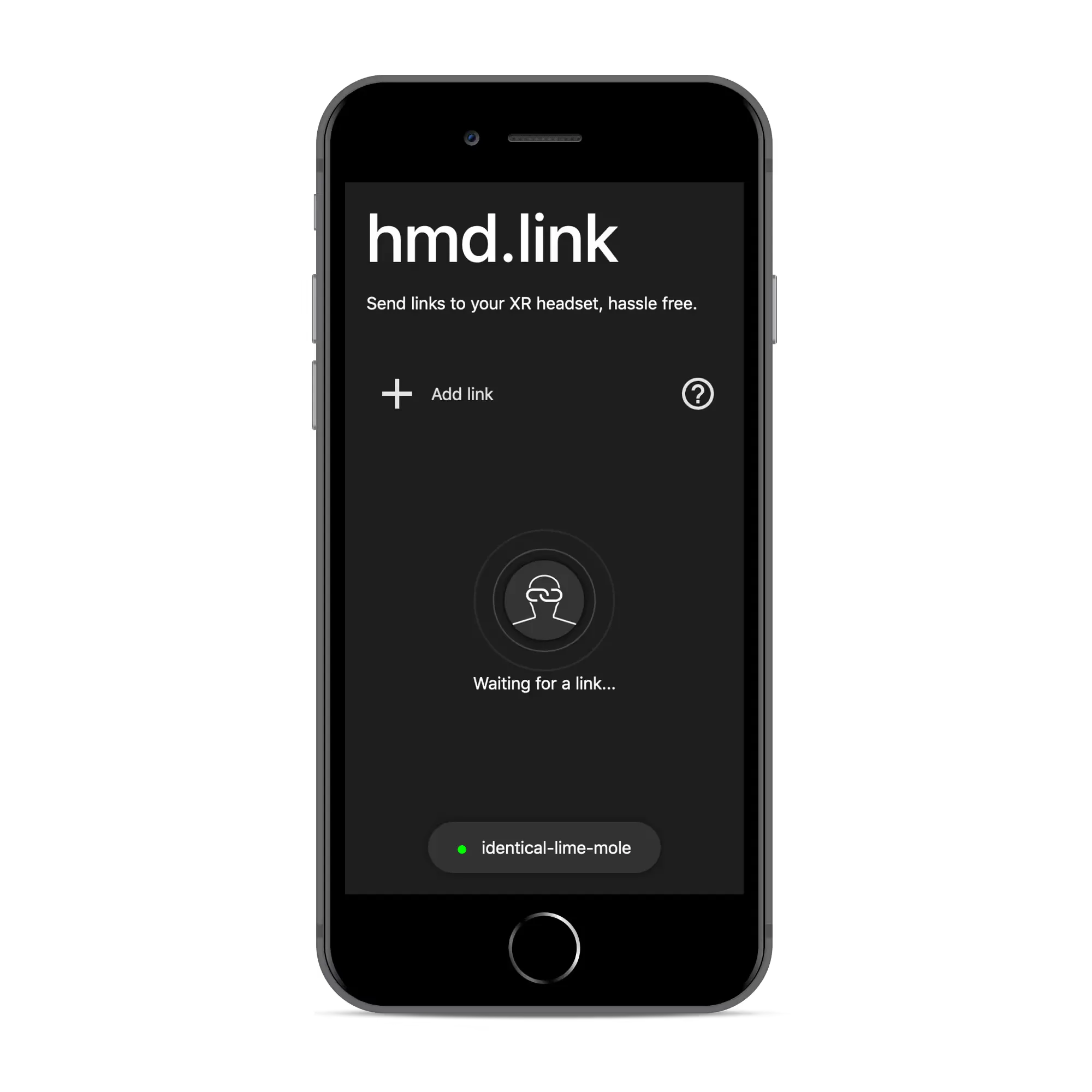
    hmd.link sends links to your VR headset hassle-free.
  3. Put on your Meta Quest headset and launch the browser.

  4. In the headset, go to hmd.link. The page will automatically detect the link sent from your other device and open it inside the headset.

That’s it. No typing, no logging in, no hassle. Cool, huh?

Why This Works

The magic behind hmd.link is that it uses your local Wi-Fi to detect what your other device sent. As long as both devices are on the same network, the headset can “see” the shared link almost instantly.

💡Pro Tip

Bookmark hmd.link in your Quest browser for even quicker access next time.

More VR Updates Coming

Right now in 2026, Visiofy’s VR experience is supported on Meta Quest and Pico 4 headsets. We’re continuing to improve the VR experience to make viewing and sharing 3D home designs as smooth and intuitive as possible.

Have questions or feedback? Drop us a line—we’re always building Visiofy to better serve architects, home builders, and home buyers alike.

Further information about hmd.link: https://mattrossman.com/projects/hmd-link

Related reading:

VR Architecture: The Future of Design and Client Communication

How to Record your Screen with a VR Headset

How to Use the Meta Quest Browser

How to Use the Controllers of a Meta Quest Headset


Frequently asked questions

Why can’t I just open the Visiofy link directly in my headset?

You can, but it’s usually inconvenient.

Most people receive Visiofy links through WhatsApp, SMS, email, or Messenger, and with Meta Quest, it's not always easy to access those apps with your controllers and virtual keyboard. And the alternative, typing in a long URL with your virtual keyboard is tediouslyslow and error-prone. hmd.link is the quick shortcut. Once you've saved the link to your virtual space in your bookmarks, you can acces it directly without the browser.

What is hmd.link?

hmd.link is a simple tool that helps you open links in your VR headset without typing them manually. Instead of rewriting a long Visiofy URL inside Meta Quest, you open hmd.link on your phone or laptop, paste the Visiofy link, and it appears in your headset instantly.

Do I need to install anything on my Meta Quest?

Nope. You don’t need an app, plugin, or any extra setup. You’ll just open the link using the Meta Quest browser.

Do I need to log into WhatsApp or email inside the headset?

No — that’s the point. 😊 With hmd.link, you can keep everything on your phone or laptop and still open the Visiofy space in VR in seconds.

What do I need for link sharing on Meta Quest to work?

To use hmd.link successfully, you need:

  • A Meta Quest headset

  • Your phone or laptop

  • A Visiofy link

  • And most importantly: both devices must be on the same Wi-Fi network

Why do my phone and Quest need to be on the same Wi-Fi?

Because hmd.link sends the link to your headset over your local network (your Wi-Fi). If your phone is on mobile data or a different network, your headset won’t receive it.

Can I use hmd.link from my laptop instead of my phone?

Yes! If the Visiofy link is in your email or on your desktop, you can open hmd.link on your computer, paste the link there, and open it instantly in Meta Quest.

Is hmd.link safe to use?

hmd.link is designed for convenience — it simply helps you move a link from your phone/computer to your headset faster.
You’re still opening the original Visiofy link in your headset browser (no copying, typing, or app logins required).

Do I need a Visiofy account to view a shared link in VR?

You do not need a Visiofy account to view a shared link to a walkable virtual space. Shared Visiofy links are meant to be opened easily by future homeowners without any signups, downloads or installations.


Share this post