
sketchup vr walkthrough
can sketchup be used for virtual reality?
sketchup vr tutorial

OVERVIEW
To optimize your architectural model for best performance, keep the file under 100 MB, set the floor level to zero, reduce polygon count below one million, and use no more than 150 properly aligned textures. Proper optimization ensures that your virtual model loads quickly, runs smoothly on any device, and looks visually appealing.
Before bringing your 3D building model into Visiofy, it’s important to prepare and optimize the file. Proper optimization ensures that your virtual model loads quickly, runs smoothly on any device, and looks visually appealing. In this article, we’ll guide you through best practices for file size, floor level alignment, polygon count, and textures. By following these steps, you’ll guarantee the best performance and user experience with your Visiofy virtual walkthrough.

Visiofy transforms architectural 3D models into walkable virtual spaces that can be viewed on any device. However, if the original model is too large, overly detailed, or filled with unnecessary elements, it may load slowly, lag, or even fail to display properly. Preparing your model in advance ensures a seamless import process and an impressive end result.
Aim to keep your exported model under 100 MB.
Reduce texture resolution and remove duplicates where possible (see Section 4).
Ensure the triangle count stays under one million (see Section 3).
Smaller files load faster, which is especially important for clients accessing models on mobile devices or slower connections.
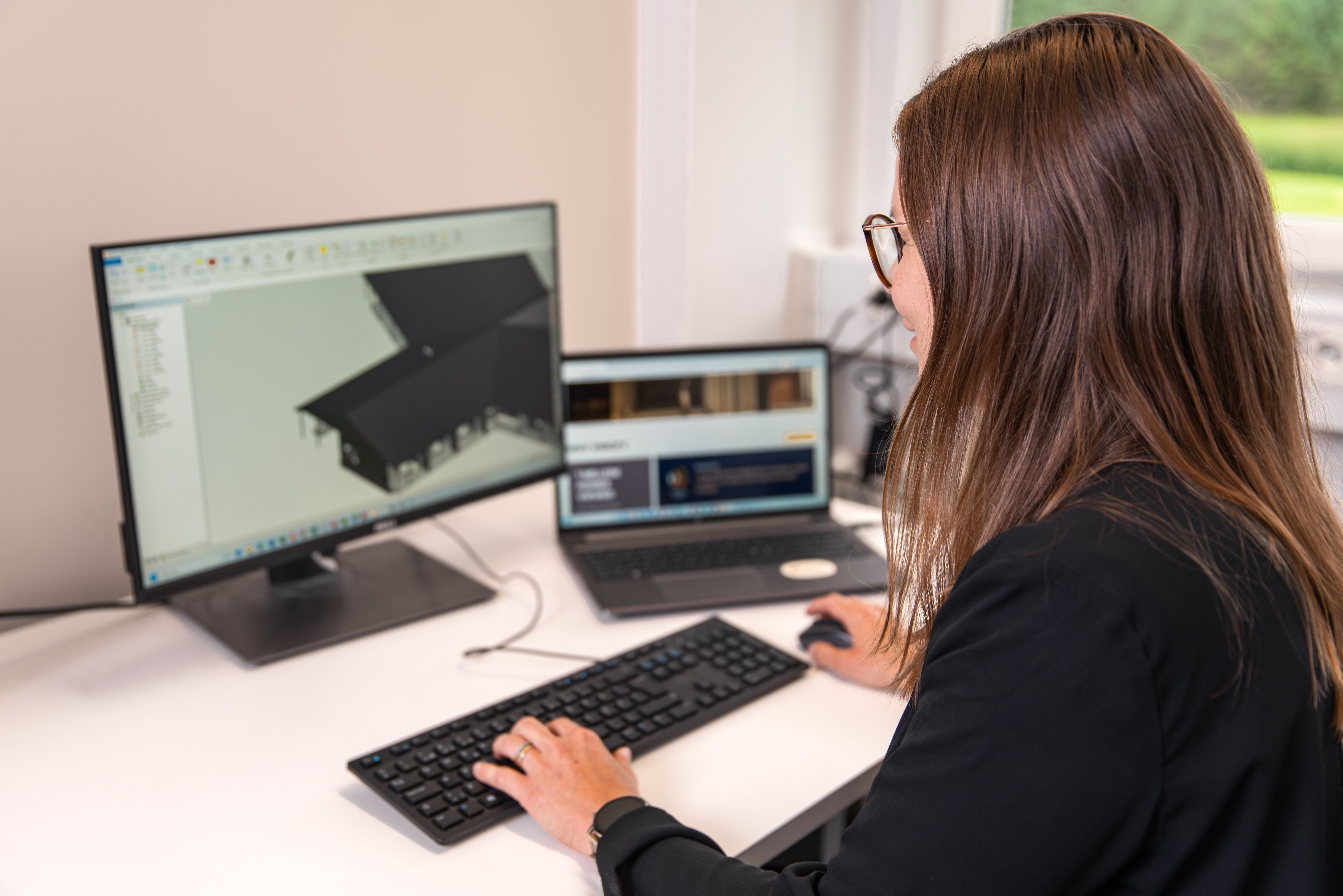
Make sure your model’s floor level is aligned with the 0-level (ground level).
This ensures that virtual walkthroughs start at the correct height.
Avoid scenarios where the user starts “floating in the air” or “underground.”
Keep the polygon count below 1,000,000 triangles.
Simplify complex objects and use lower-detail versions where possible.
Pay attention to vegetation and detailed round shapes (like sofas and furniture), which can quickly inflate polygon counts.
Delete or hide unnecessary elements, such as temporary design elements, draft models, and excess environmental objects.
A leaner model not only loads faster but also looks cleaner in a virtual environment.
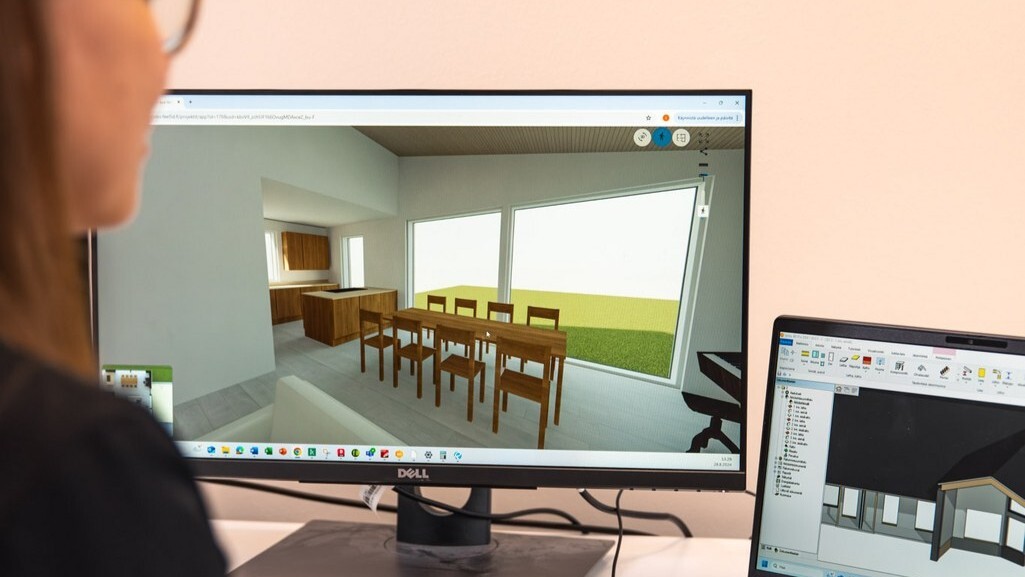
Use high-quality but reasonably sized textures (e.g., 1024×1024 or 2048×2048).
Check out the export instructions. With a lot of software, you need to add your texture files along with the .glb file.
Extra textures increase file size and slow down loading times.
Ensure that all surfaces have the correct materials and properly aligned textures.
💡PRO TIP
Visiofy provides in-app export guides for different design software, showing the recommended file formats and settings to use before uploading your model. Following these software-specific instructions will save time and ensure the best compatibility.
You can also watch our tutorials on our YouTube channel