
Uploading an Autodesk Revit Model to Visiofy
Watch the video or scroll down for step-by-step written instructions.
Step- by step instructions for Revit
1. Ensure you have a glTF Exporter installed
- You’ll need to export your Revit model via a glTF exporter add-in.
- We recommend the Leia glTF exporter which you can download from the Autodesk store or directly via this download link.
2. Open your model in Revit.
- Switch to the 3D view and ensure that only the desired structures and objects are visible.
- Avoid high-poly objects to keep the model lightweight and ensure smooth performance.
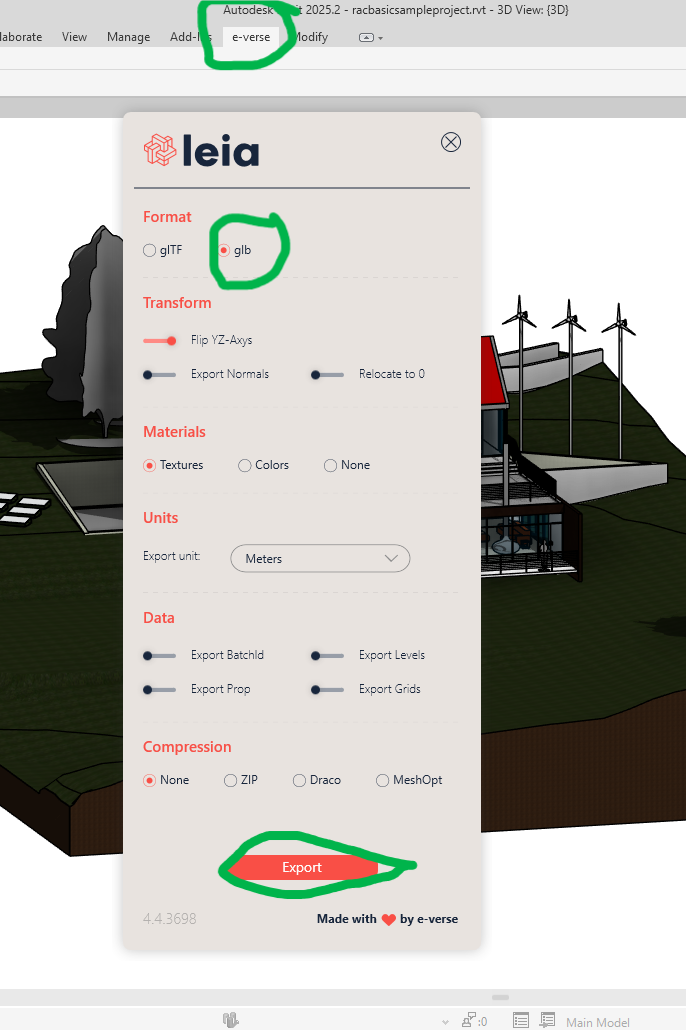
3. Export the model in GLB format (see image for reference):
- Make sure you've downloaded and installed the Leia glTF Exporter or another Revit-compatible glTF export add-in.
- If using Leia:
- Go to e-verse → export glTF.
- Set glb as the download format and click on "Export".
- Save the file to your desired location.
4. Log in to Visiofy and upload your model:
- Log in at app.visiofy.com and go to "New Project".
- Upload the .glb file
- Give your project a name and click "Create Project".
- Wait for the upload to process.
All done! Your model is now viewable and shareable in Visiofy. You can share the link with your clients or team.
Need onboarding? We've got you covered.
While some like to explore their own, others prefer a guided crash course. Schedule a demo below:
Hungry for more?
