
sketchup vr walkthrough
can sketchup be used for virtual reality?
sketchup vr tutorial
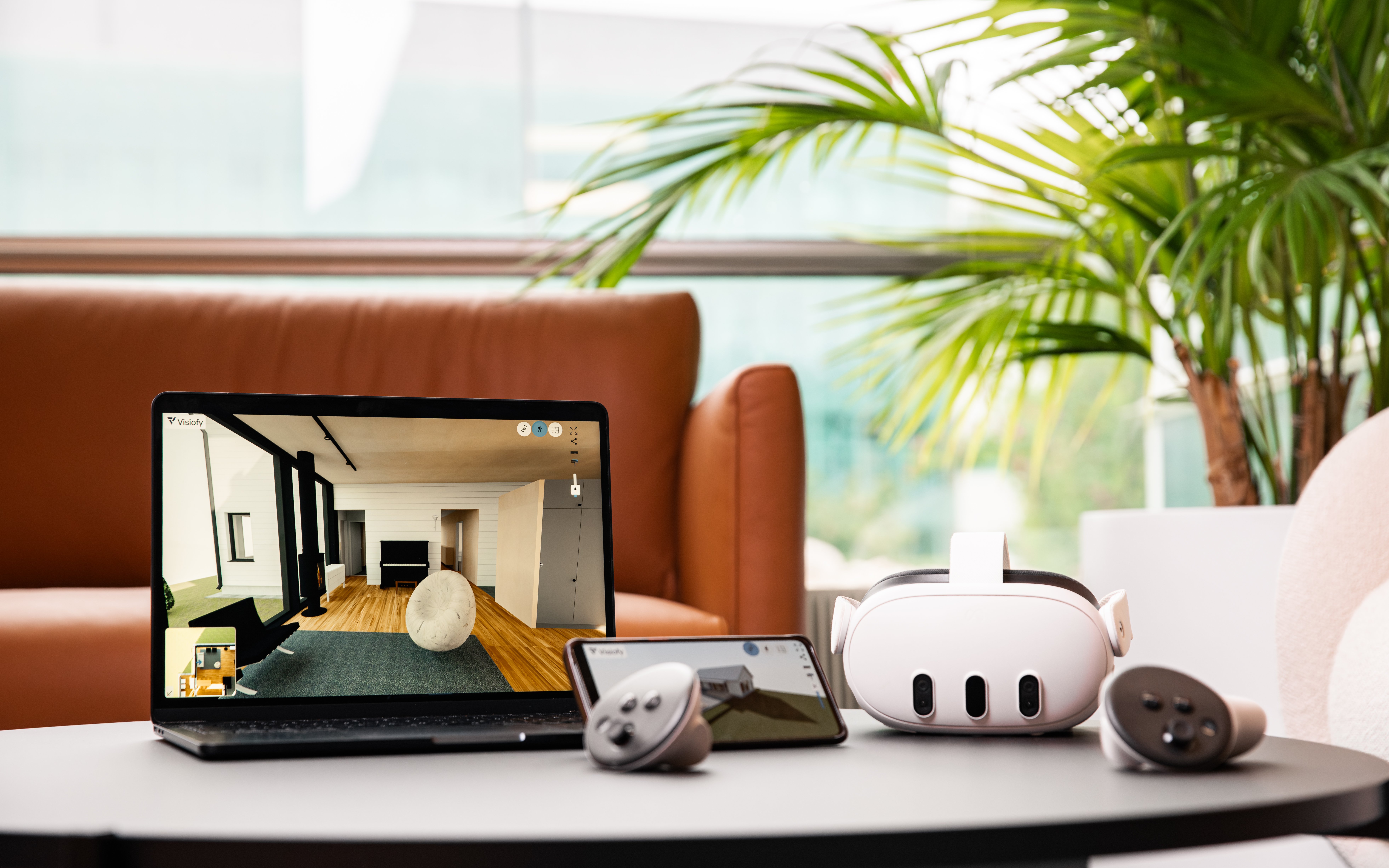

Once your architectural model has been uploaded to Visiofy, opening it in the viewer is simple.
Log in to the Visiofy platform
Select your project
Click Open
The model loads directly in your browser, making your design easy to navigate online in our 3D CAD viewer.
The Visiofy viewer includes three main viewing modes that help users understand the model from different perspectives: Rotate, Walk, and Tabletop/Floor Plan. These modes are accessible directly from the viewer interface and are designed to be easy to switch between during exploration or presentations. You can easily see which mode you are in as the chosen viewing mode has a distinct color and a little checkmark at the bottom.

Each mode uses its own set of controls optimized for that type of interaction.
Visiofy uses simple mouse and keyboard controls that are displayed directly inside the viewer through the Viewing Modes Help panel.
The controls adapt automatically depending on the active viewing mode, making the viewer intuitive even for first-time users.
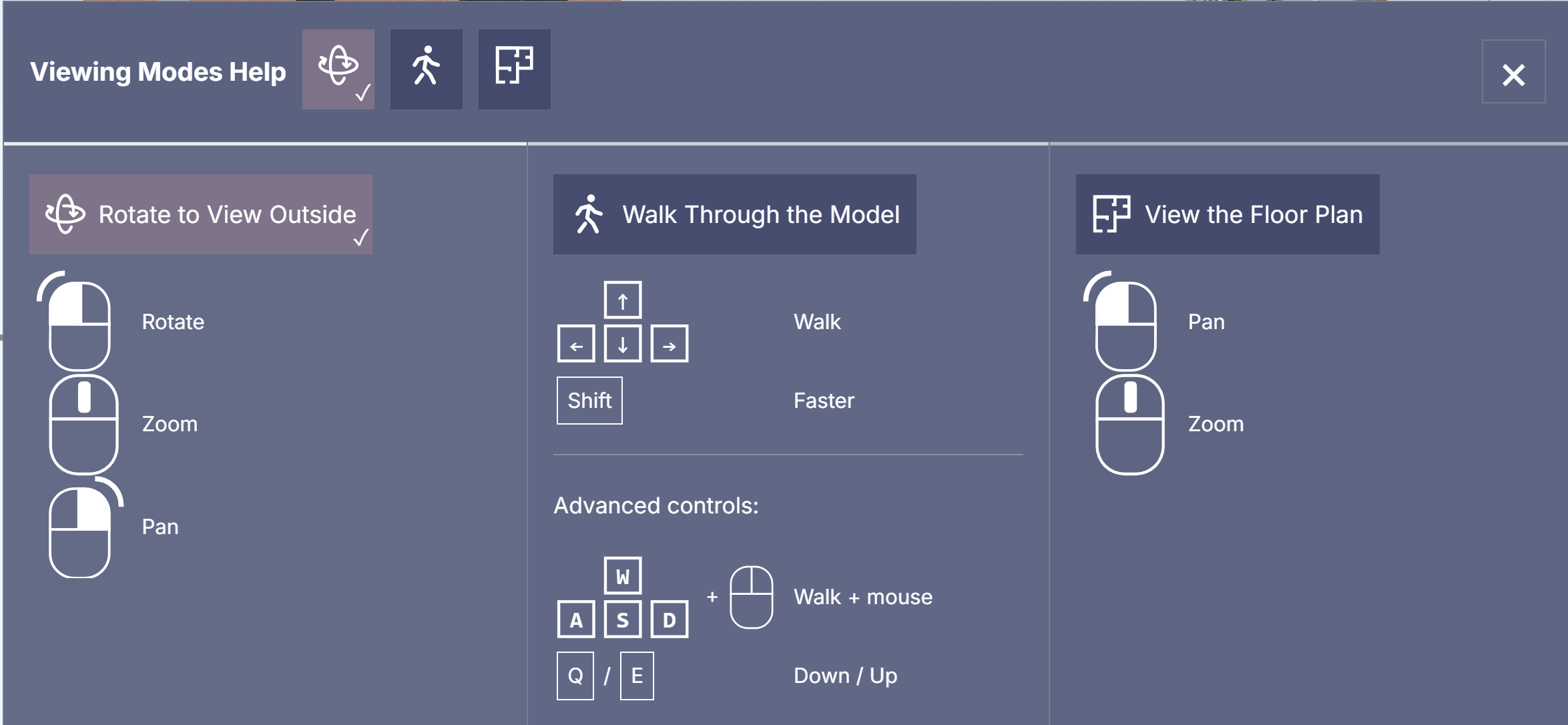
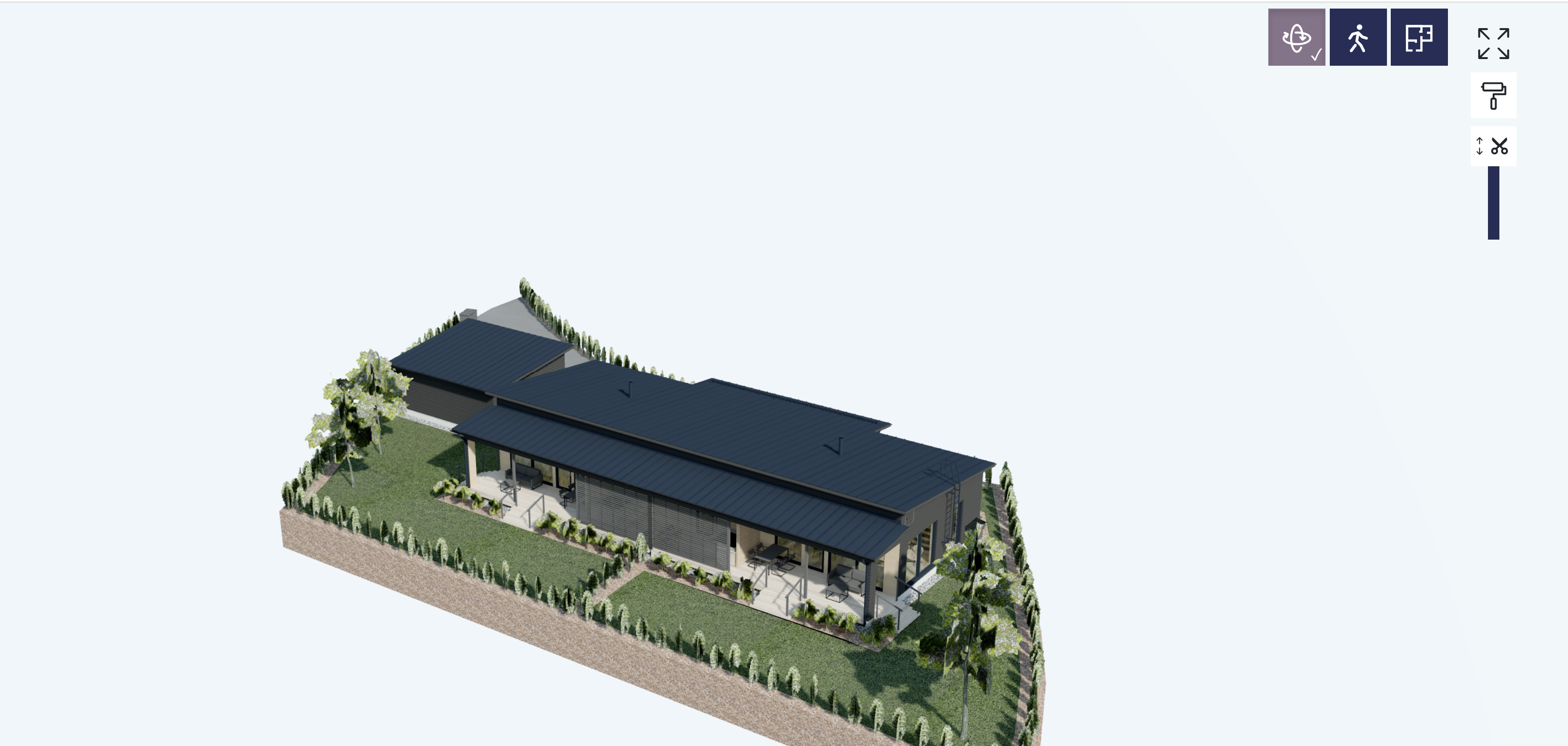 Rotate Mode is used to view the model from the outside and inspect the building as a whole.
In Rotate Mode, you can:
Rotate the model using the mouse
Zoom in and out with the scroll wheel
Pan to reposition the model view
This mode is ideal for reviewing massing, roof shapes, façades, and overall proportions during early-stage design discussions.
Walk Mode allows you to move through the building at human eye level and experience the design as a walkable space.
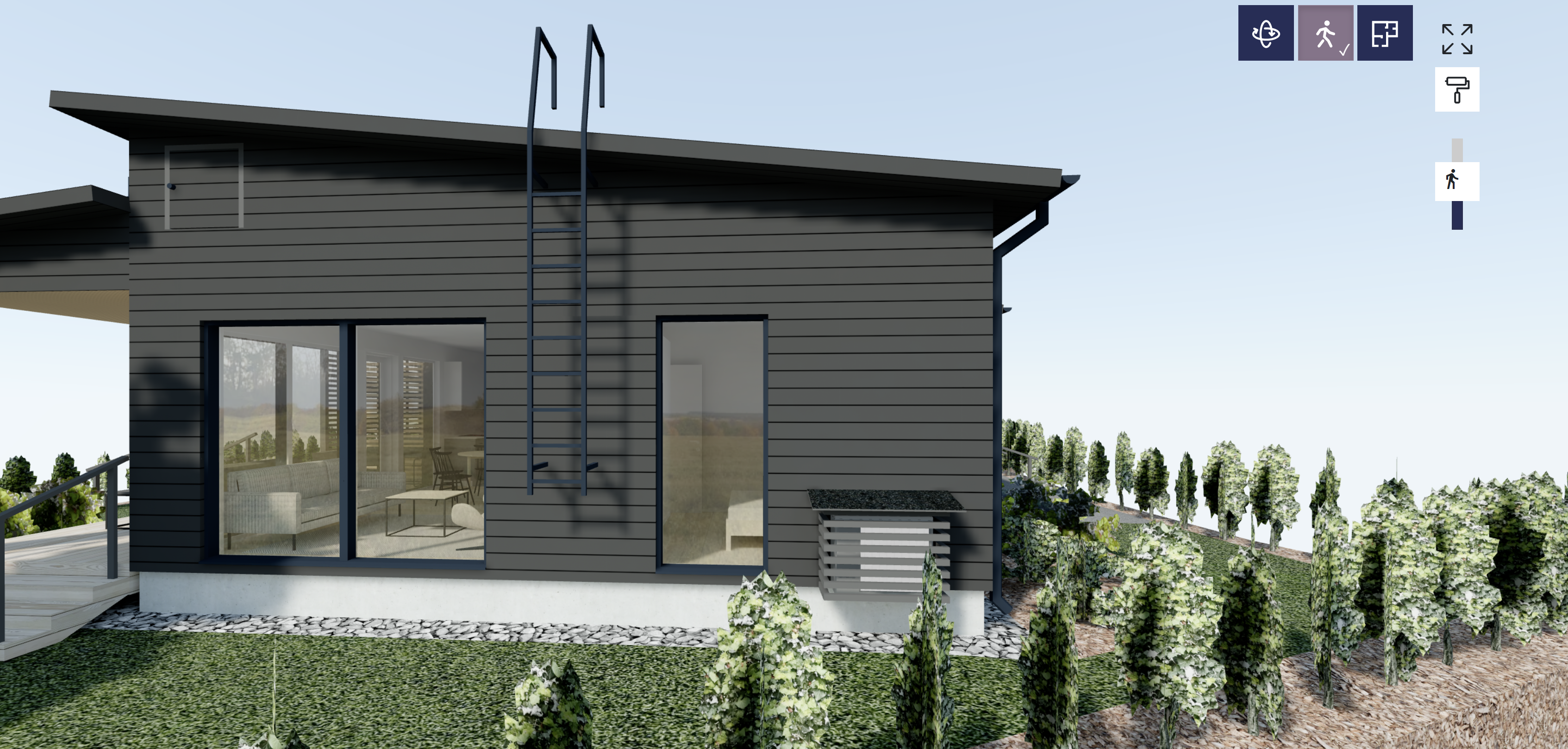
In Walk Mode:
Use the arrow keys to walk forward, backward, and sideways
Hold Shift to move faster
Use W, A, S, D for advanced movement
Combine keyboard + mouse to walk and look around naturally
Use Q / E to move down or up vertically
Walk Mode is especially effective for client presentations, helping non-technical users understand room sizes, flow, and spatial relationships.
Floor Plan mode presents the building from a top-down perspective.
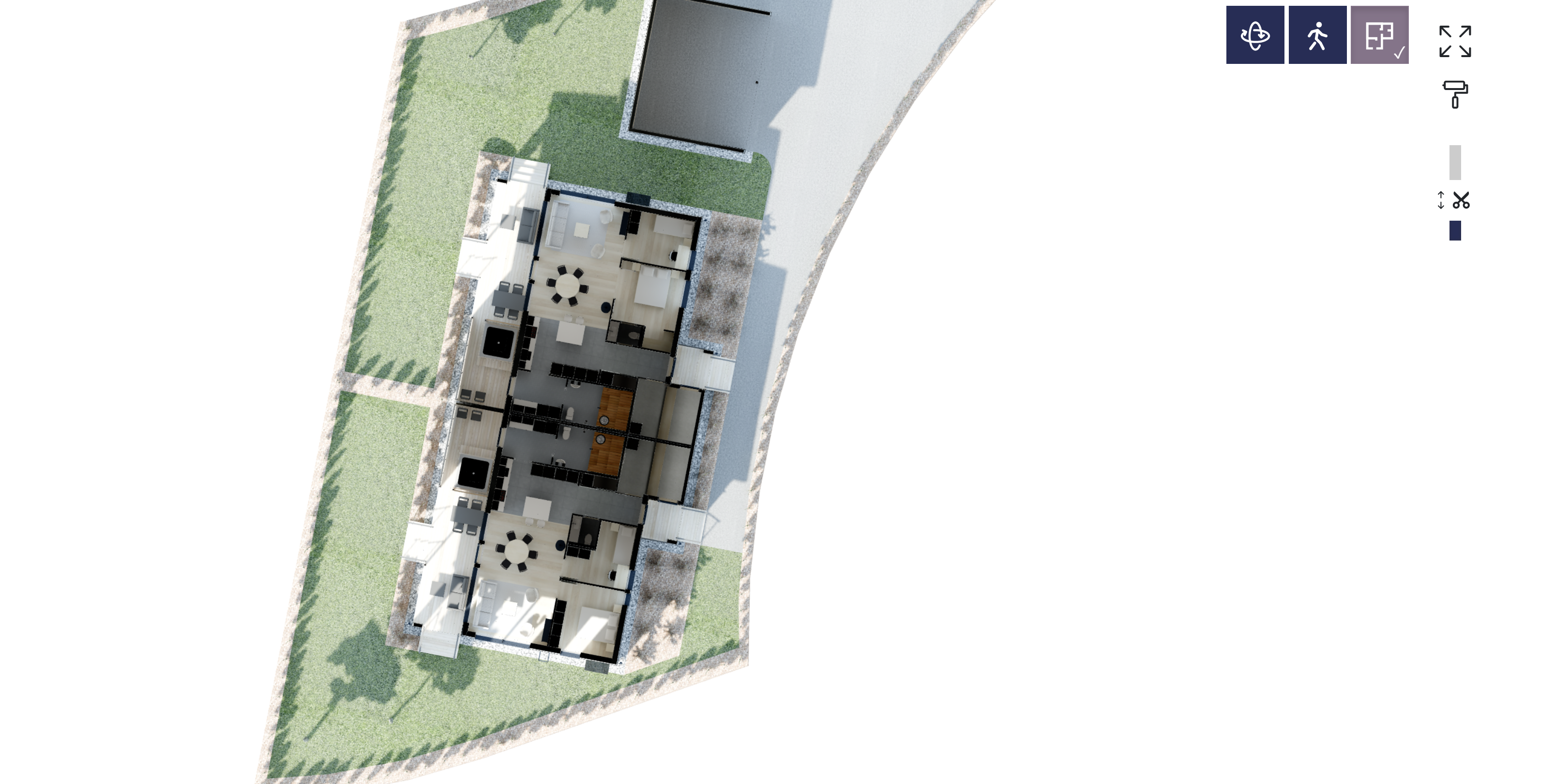
In this mode, you can:
Pan the view using the mouse
Zoom in and out to focus on specific areas
Understand layout, circulation, and room relationships in a simplified way
This mode works well as a bridge between traditional 2D plans and immersive 3D walkthroughs.
The Slice Tool (the pair of scissors at the top right) allows you to cut through the model to reveal interior spaces without navigating through them manually.
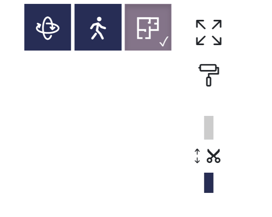
You can use the Slice Tool to:
Reveal floor-to-floor relationships
Show interior layouts clearly
Explain vertical structure and building sections
The Slice Tool is particularly useful in technical reviews and stakeholder discussions.
The Elevation tool helps control the vertical position of the camera.
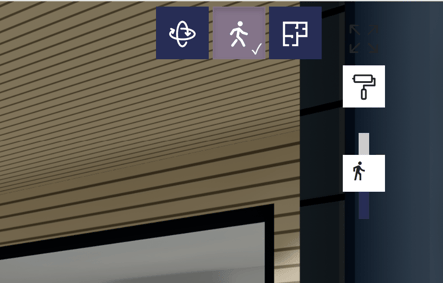
With elevation controls, you can:
Adjust viewing height
Align the camera to specific levels
Better understand multi-storey buildings
This feature supports both spatial clarity and accurate design review.
The Paint Tool allows you to change the color of a selected surface inside the viewer.
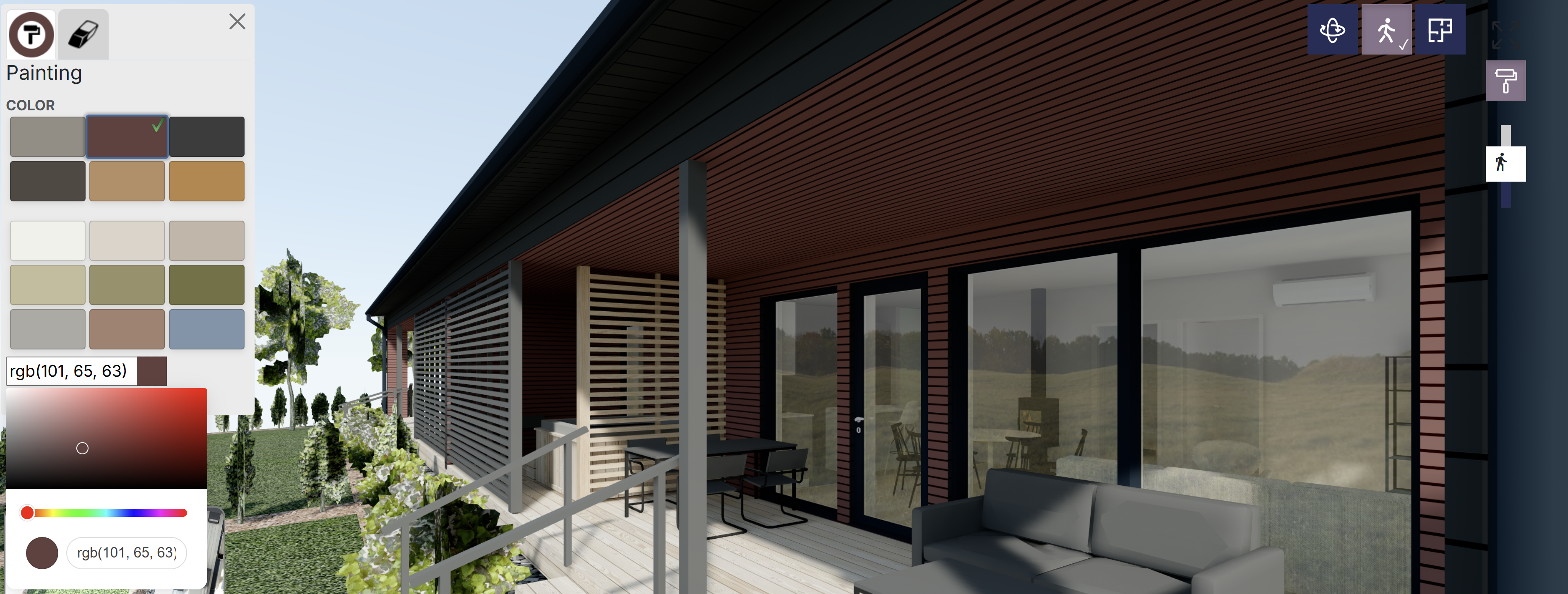
It can be used to:
Highlight specific areas or surfaces
Visually test color options
Guide attention during presentations or discussions
The Paint Tool turns the Visiofy viewer into an interactive communication aid, not just a static 3D CAD viewer.
The Viewing Modes Help panel provides clear, visual guidance on how to use the viewer controls. You can toggle between the help window open and minimized via the help button at the bottom middle of your screen.
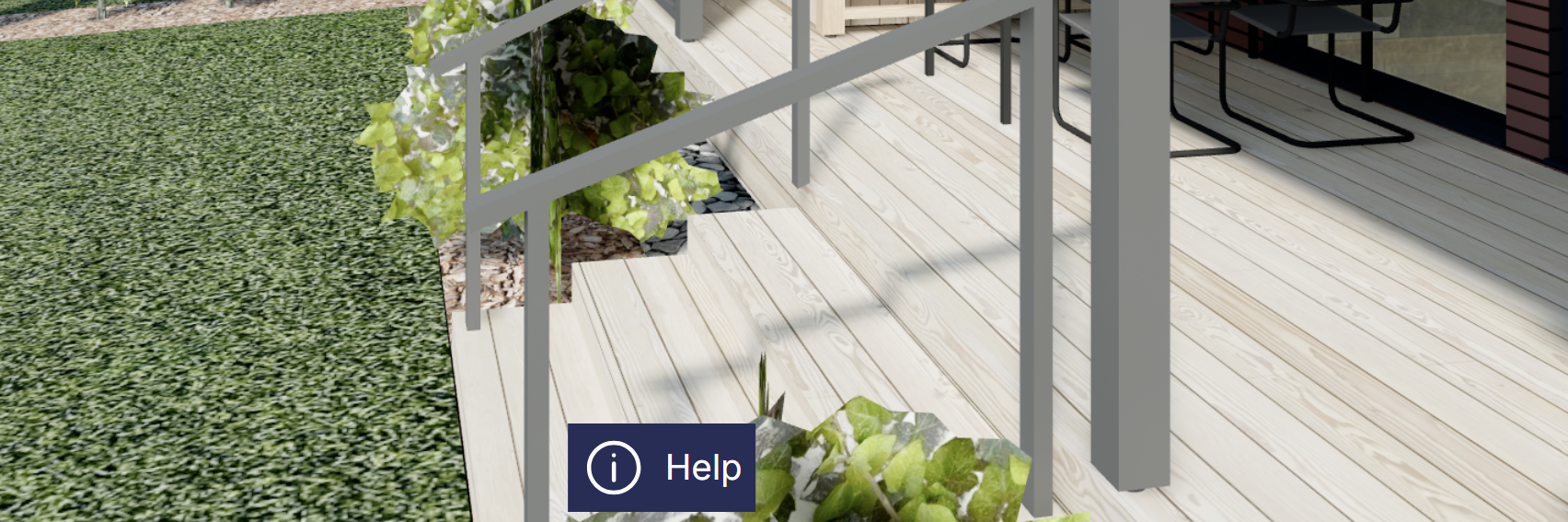
If you encounter issues:
Open the help overlay to check controls
Make sure your browser is up to date
Confirm your model is prepared according to Visiofy guidelines
Most navigation questions can be resolved directly inside the viewer.
Visiofy encourages users to leave feedback directly from the platform. You'll see the leave a review button at the bottom right of your screen.
You can submit feedback to:
Report usability issues
Suggest new features
Share your experience using the 3D CAD viewer online
This feedback helps continuously improve Visiofy for architects, builders, and project teams.